
Table of Contents
- Lockscreen Bypass - Overview
- Portal Policy Settings
- On the Device
- Expected Behavior/Use-case
- Security Considerations
- Device Compatibility
- Demo Videos
- Frequently Asked Questions
- ⚠️ Important Disclaimer
Lockscreen Bypass - Overview
The Lockscreen Bypass feature mitigates the risk of a device being permanently locked due to a user forgetting their lockscreen password, especially when the device cannot receive commands from Ensemble (e.g., offline devices, network issues, or other connectivity problems).
Key Features
- Device-specific 6-digit bypass PIN shown after configurable failed unlock attempts.
- Device admin can choose between bypass PIN and/or regular device password.
- Automatic PIN regeneration after successful bypass unlock.
- Works on offline devices with deferred regeneration when connectivity is restored.
- Compatible with Direct Boot (works even after device reboot before first unlock).
- Factory reset option for Zero-touch enrolled devices.
Requirements
- Ensemble version 203 or higher.
- Device must check-in once with Lockscreen Bypass policy enabled.
- Show after Number of Failed Attempts policy set to greater than 0.
Portal Policy Settings
Navigate to: Project > Policies > Security Settings > Lockscreen Bypass
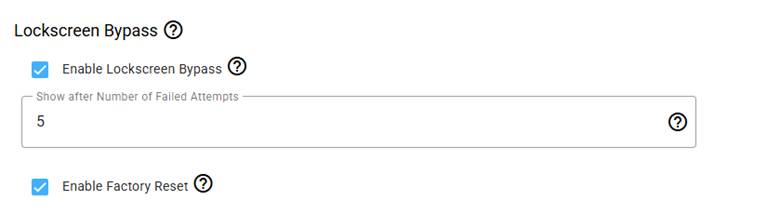
Configuration Options
Show after Number of Failed Attempts (Required)
- Set to the number of failed password attempts before the bypass screen appears.
- Must be greater than 0 to enable the feature.
- Recommended: 3-5 attempts
- Note for Google Pixel devices: Threshold is automatically capped at 5 to prevent exponential lockout timeouts
Enable Factory Reset (Optional)
- Allows users to factory reset directly from the Lockscreen Bypass screen.
- Important: Only enable for devices provisioned via Zero-touch enrollment.
- Without Zero-touch, users may be able to factory reset and avoid Ensemble re-installation.
- Factory reset requires holding the button for 10 seconds (prevents accidental resets).
Device-specific Bypass PIN
Once a device checks in with the Lockscreen Bypass policy enabled, a randomly generated 6-digit PIN is created and can be viewed in the portal.
Viewing the PIN
Devices table > Options > Manage > More information > Security > Lockscreen Bypass PIN
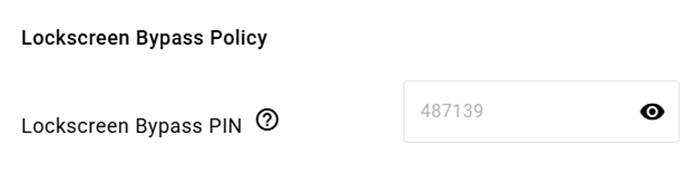
PIN Management
Online Devices:
- After a successful bypass unlock, a new PIN is automatically generated and updated in the Portal.
Offline Devices:
- The same PIN can be used continuously until the device reconnects to the internet.
- When the device comes back online (Wi-Fi or cellular), the PIN automatically regenerates.
On the Device
Bypass Screen Appearance
The Lockscreen Bypass screen appears after the user fails the device's lockscreen password the configured number of times (set in "Show after Number of Failed Attempts").
User Options
- Enter Bypass PIN
- Enter the 6-digit PIN from the portal.
- The device lockscreen password is cleared and the device is immediately unlocked.
- Note: Entering the bypass PIN removes the device's existing lockscreen password — it does not recover or reveal the old one. After unlocking, the device has no screen lock. The user should immediately set a new passcode (PIN, password, or pattern) in Settings. Any fingerprint/face unlock tied to the old passcode is also cleared and must be re-enrolled.
- Use Device Password
- Tap "Use Device Password Instead" button.
- Returns to the normal lockscreen.
- Bypass screen won't appear again for 30 seconds (prevents immediate re-triggering).
- Factory Reset (if enabled)
- Long-press and hold the "Factory Reset" button for 10 seconds.
- Countdown indicator shows remaining time.
- Releasing before 10 seconds cancels the reset.
- Warning: Only use on Zero-touch enrolled devices.
Security Protections
- Rate Limiting
- Users have 5 attempts to enter the correct bypass PIN.
- After 5 failed attempts, the device locks out for 5 minutes.
- Failed attempts counter shows progress (e.g., "Incorrect PIN (2/5)").
- Lockout timer displays remaining seconds.
- Session Limits
- If a user fails 5 times in a single session, they must use the device password.
- This prevents brute-force attacks even across multiple lockout periods.
Expected Behavior/Use-case
Initial setup:
- Enable Lockscreen Bypass policy in portal with desired threshold.
- Device checks in and receives policy configuration.
- A secure 6-digit PIN is randomly generated server-side.
- PIN is encrypted and stored on the device using Android Keystore (AES-256-GCM).
- Reset password token is activated for password-free unlock capability.
When user forgets password:
Scenario 1: Device is online
- User fails password attempts (reaches configured threshold).
- Lockscreen Bypass screen appears.
- User enters bypass PIN from portal.
- Device password is cleared and device unlocks.
- New PIN is immediately requested from server.
- New PIN is generated and encrypted on device.
- Portal displays updated PIN (refresh page if needed).
Scenario 2: Device is offline
- User fails password attempts (reaches configured threshold).
- Lockscreen Bypass screen appears.
- User enters bypass PIN from portal.
- Device password is cleared and device unlocks.
- System detects no internet connection.
- User sees message: "Connect to Wi-Fi or enable data to secure your device".
- Automatic monitoring begins - device watches for connectivity.
- When Wi-Fi/cellular reconnects, new PIN is automatically generated in background.
- Portal displays updated PIN.
- Original PIN no longer works.
After Device Reboot
The Lockscreen Bypass feature works in Direct Boot mode, meaning all bypass data remains accessible and functional even before the user first unlocks the device after a reboot.
Security Considerations
Encryption & Storage
- All bypass PINs encrypted using Android Keystore (AES-256-GCM) with device-protected storage.
- Accessible before first unlock (Direct Boot compatible).
- Separate encryption keys per device.
- Reset tokens encrypted and stored securely.
Brute-Force Protection
- 5 attempts per session with 5-minute lockout.
- Tracked failures persist across app restarts and device reboots.
- Cumulative session failure tracking prevents repeated attack attempts.
Dismissal Protection
- 30-second cooldown after user dismisses bypass screen.
- Failed password counter resets on dismissal (assumes user is actively trying to remember).
Device Compatibility
Requirements
- Ensemble version 203+
- Android 8.0+ (API 26+)
- Device Owner enrollment (not Device Admin) (Fully Managed)
Manufacturer-Specific Behavior
Manufacturer | Special Behavior |
Google Pixel | Threshold automatically capped at 5 attempts to prevent exponential lockout durations. |
Motorola | Automatic screen refresh after bypass unlock using device lock API for seamless user experience. |
OnePlus | User sees "Press power button twice to refresh screen" instruction due to OEM security policies blocking third-party lockscreen modifications. |
Other Brands | Standard Android behavior (tested on Samsung, and other major brands). |
Demo Videos
See links below for demo:
- lockscreen-bypass.mp4 - Bypass screen appearance and PIN entry
- lockscreen-bypass-lockout.mp4 - Rate limiting and 5-minute lockout behavior
- lockscreen-bypass-fr.mp4 - Factory reset long-press functionality
- lockscreen-bypass-demo.mp4 - End-to-end walkthrough
Frequently Asked Questions
Q: What happens if I lose the bypass PIN?
A: The PIN is always available in the portal under Devices > Options > Manage > More Information > Security > Lockscreen Bypass PIN. If you cannot access the portal, the device must be factory reset.
Q: Can users see the bypass PIN on the device?
A: No, the PIN is only visible in the Ensemble portal and must be provided by an administrator.
Q: What happens to the old device password after using the bypass PIN?
A: It is permanently removed, not recovered. After a bypass unlock the device has no screen lock, so the user should set a new passcode right away. Fingerprint/face unlock tied to the old passcode is cleared and must be re-enrolled.
Q: What happens after a bypass unlock?
A: If online, a new PIN generates immediately. If offline, the current PIN remains valid until the device reconnects, then automatically regenerates in the background.
Q: Does this work with work profile devices?
A: No, this feature requires Device Owner enrollment. Work profile (Android Enterprise) devices use a different management model.
Q: Can I disable this feature after enabling it?
A: Yes, simply disable the policy in the portal. On the next device check-in, all bypass data is securely removed from the device.
Q: Does the bypass screen work offline?
A: Yes, the bypass screen is triggered locally based on failed password attempts and does not require internet connectivity to appear or function.
⚠️ Important Disclaimer
Use of this feature is at your own risk. Conversa Solutions is not responsible for:
- Data loss resulting from bypass unlock or factory reset operations.
- Devices rendered inaccessible due to lost or forgotten bypass PINs.
- Unauthorized access to devices if bypass PINs are compromised.
- Devices that are factory reset without proper Zero-touch enrollment.
- Any security vulnerabilities arising from improper policy configuration.
Administrator Responsibilities
- Secure storage and distribution of bypass PINs.
- Only enabling factory reset on devices provisioned via Zero-touch enrollment.
- Setting appropriate failed attempt thresholds for your organization's security requirements.
- Regular review of device security policies.
By enabling this feature, you acknowledge that you understand these risks and accept full responsibility for its implementation and use.