
TABLE OF CONTENTS
Creating a Contact List for iOS Project
Much like an Android project, you can create a list of contacts to be deployed to your device(s) on an iOS project. These contacts make it easy for your customers to have readily available access to the information they need.
Create Address Book
Before creating a contacts list within a project, you first need to create an Address Book on your main company page.
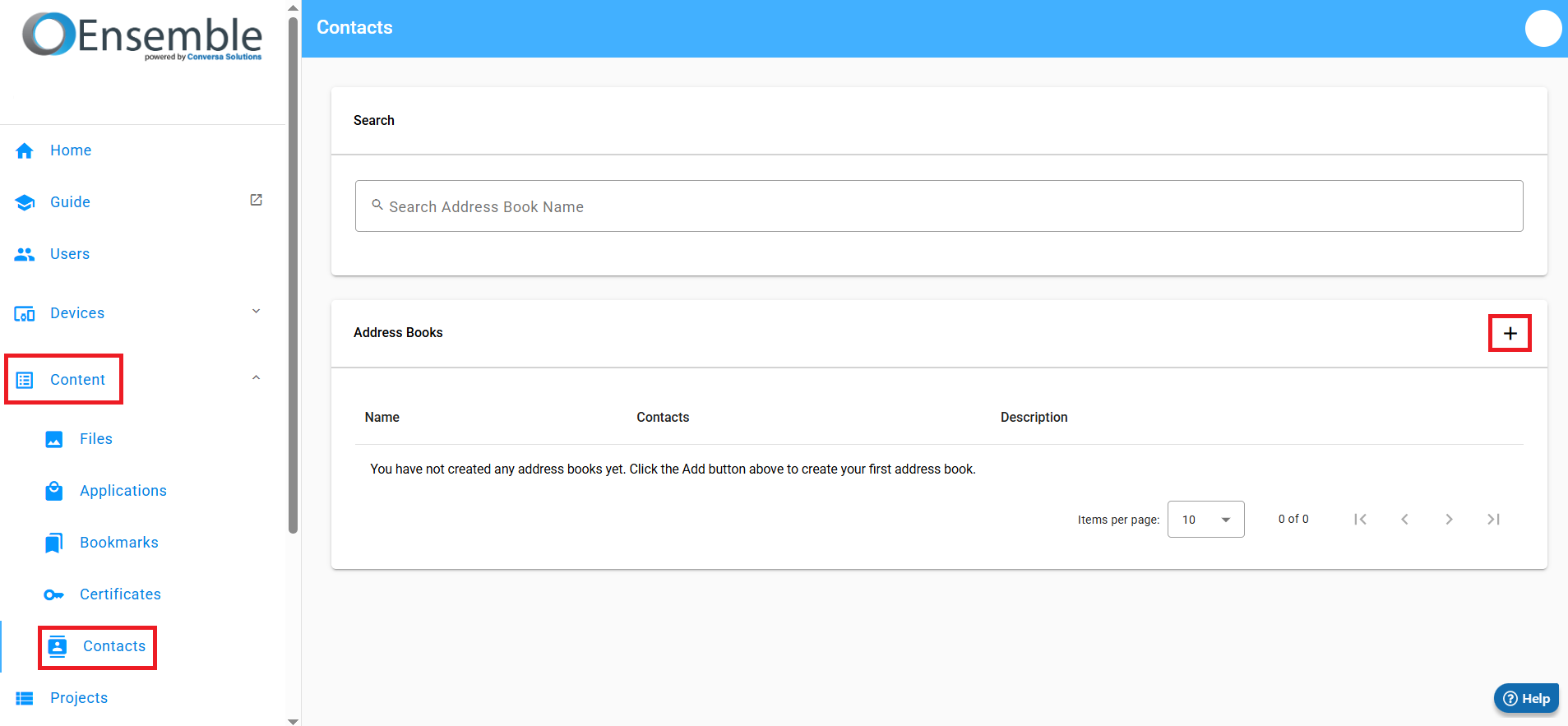
To do this, log into your Ensemble account, then click Content on the left-hand side of the screen, and then choose Contacts from that list. Once you are on that page, click the + button to begin creating a new address book.
The screen that pops up upon clicking the + button is where you create the address book.
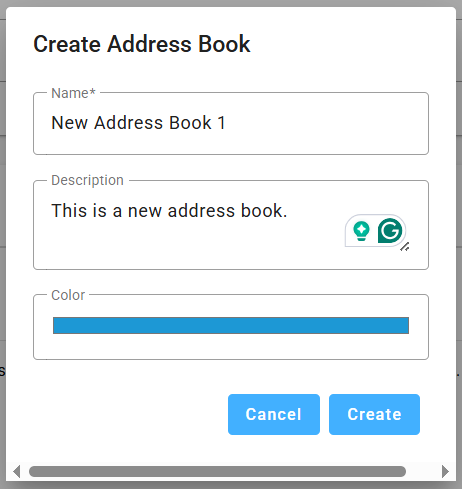
Enter a name for the address book (required), a description if you like, and a color set for the address book that will show once it has been deployed to the device(s) on your project(s).
Address books can be added to multiple iOS projects, so you do not have to recreate the list for each project.
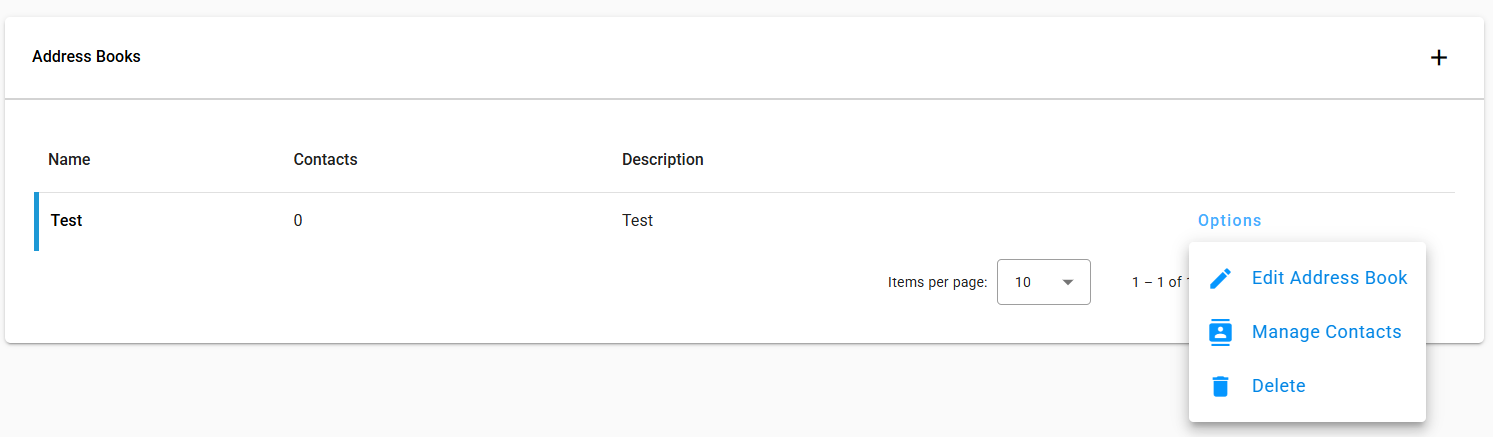
After creating the address book, you can click the Options button to edit the address book (name/description/color), or to manage the contacts within the address book, which is how you add and remove the contact information.
When you click Manage Contacts, you will be taken to the Contacts screen, which upon first click will look like this:
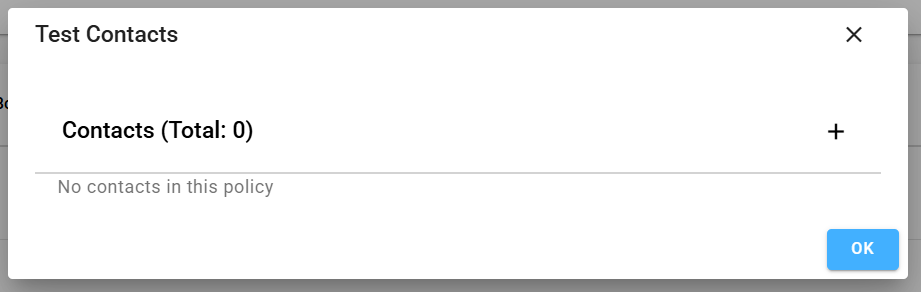
Click the + button to begin adding a contact.
.
Managing Contacts
Once you click the + button, this is the screen you will see:
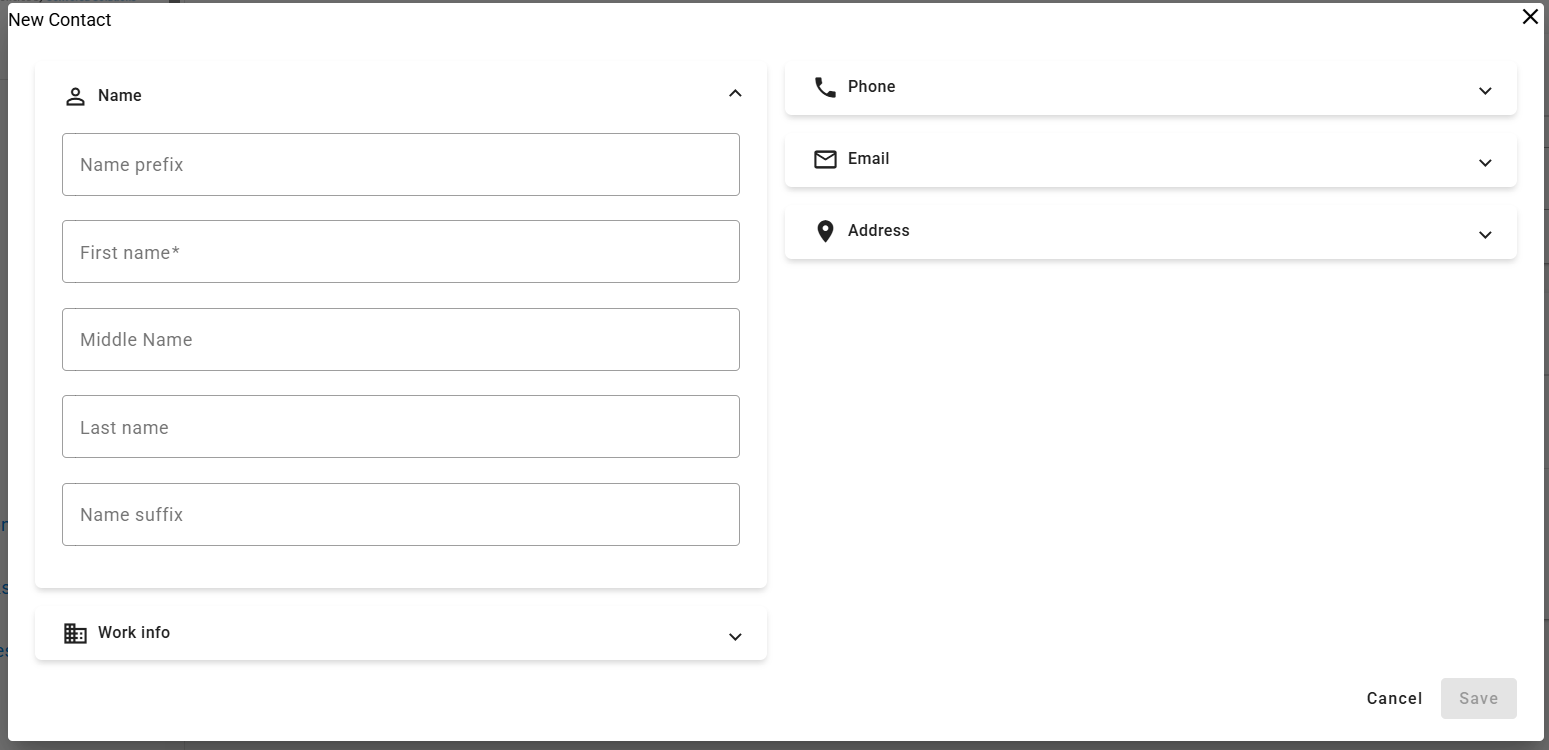
From here, fill out any information that you want the contact to have, such as name, phone number, email address(es), etc. Once you are done filling out the information, click the Save button in the bottom right corner.
After creating at least one contact, the Manage Contacts screen will look like this:
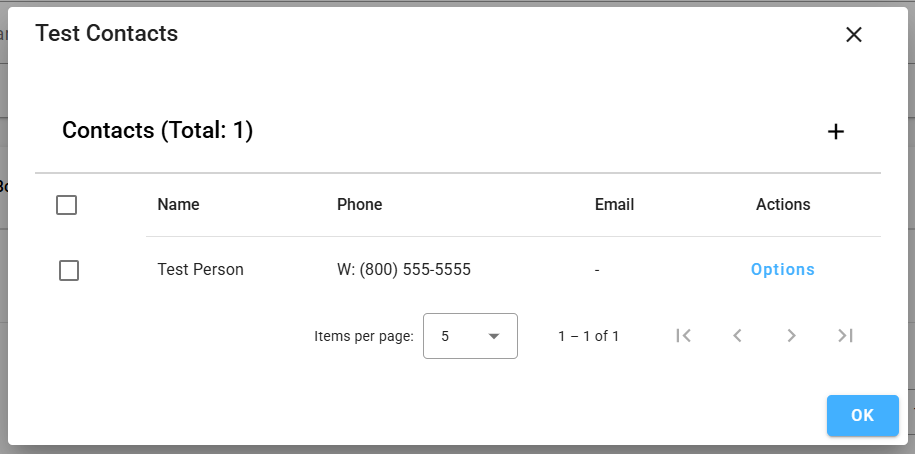
Clicking the Options button gives you the options to Edit the contact, or Delete it.
Once this has been completed, you can move onto the next step which involves adding the address book to your project(s).
Adding Address Books To A Project
First, create an iOS project on your company project page, if one has not already been created.
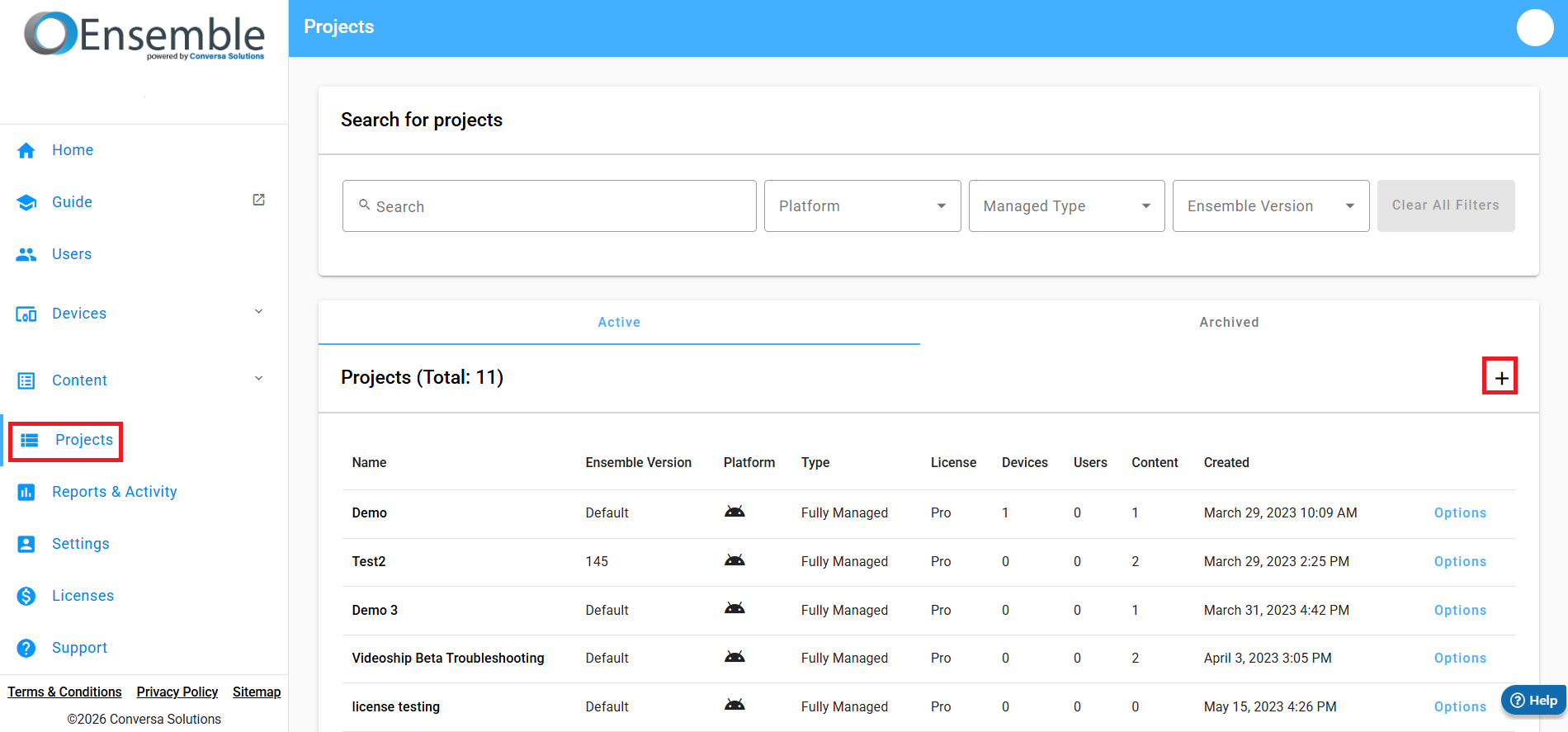
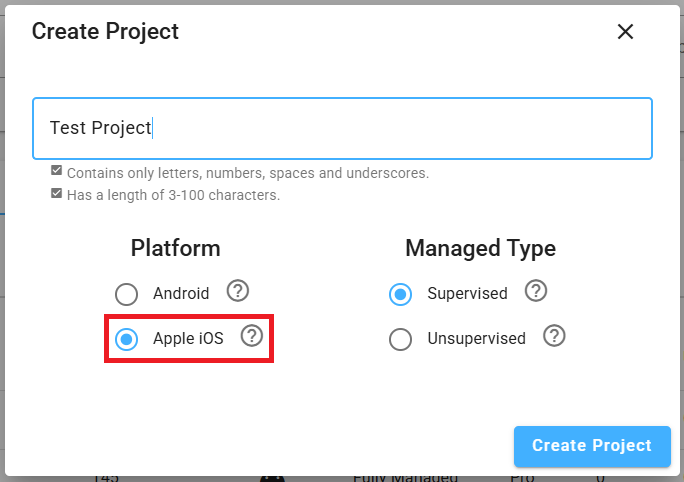
Be sure to select iOS when creating the project.
After creating your project, navigate to the Policies tab, then the Communication Settings tab within the Policies page.
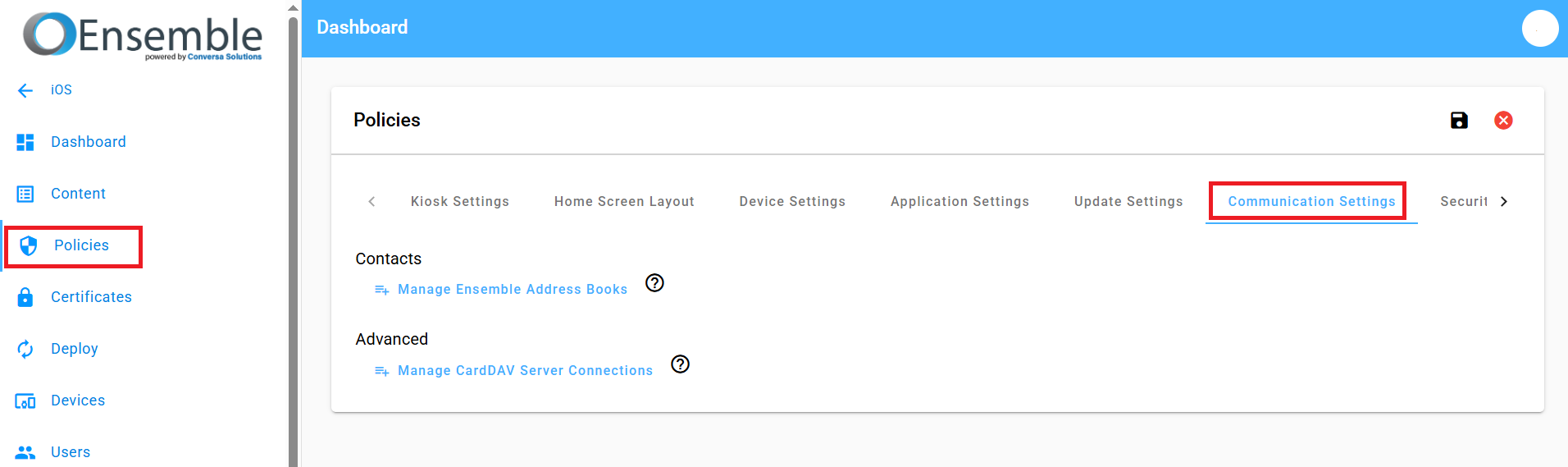
Click the link that says "Manage Ensemble Address Books" to begin creating your contacts list.
Be sure to select the correct Address Book that you wish to add to this project, then click Save.
Below is an example of an Address Book, with the Name and Description being present.
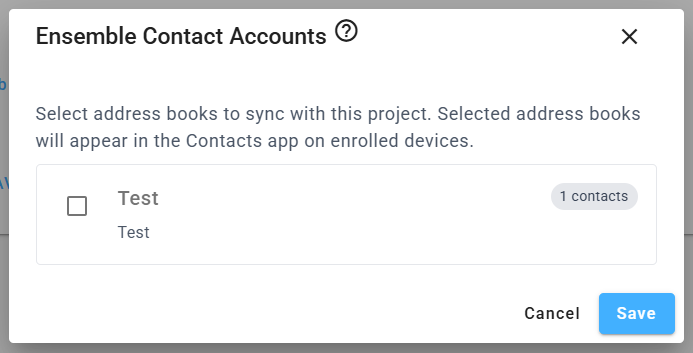
Once added, be sure to Save your project and Deploy it, so all changes are pushed out to your device(s).
Managing CardDav Server Connections
If you need to manage any settings within the CardDav Server, click the Manage CardDav Server Connections button below the Manage Ensemble Address Books button.
This is what you will see upon clicking that button:
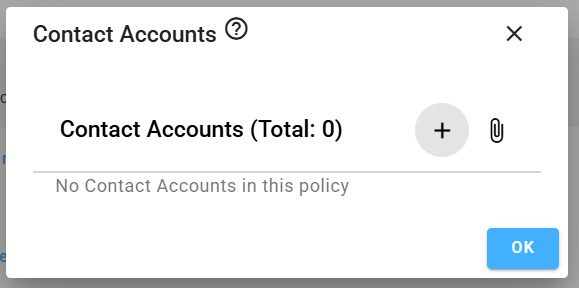
Click the + button to begin adding the Contact Account. This is what you will see upon clicking that button:
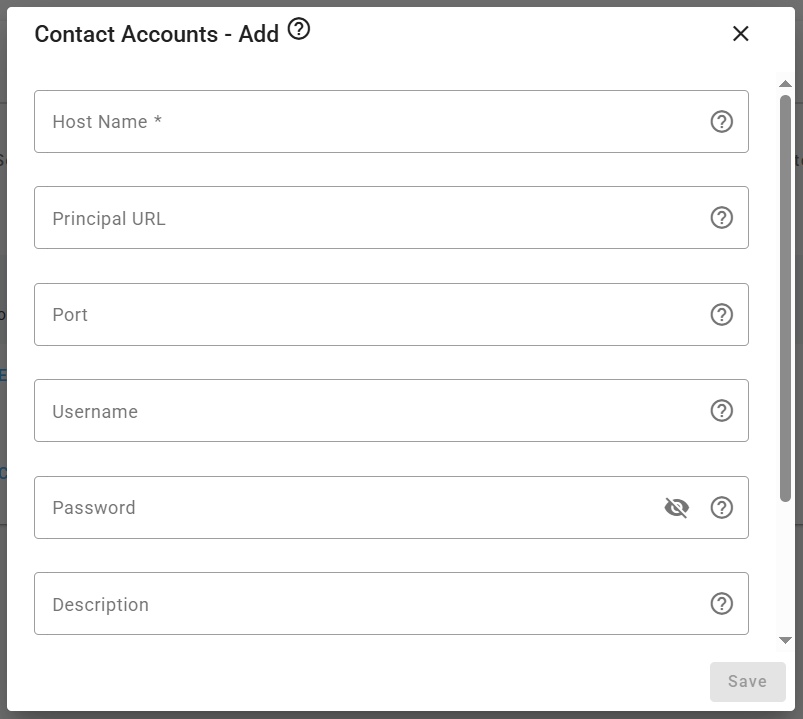
Fill out any information you have, and click the Save button in the bottom right. When finished, click OK to close the Contact Accounts box, then be sure to Save the project and Deploy it, so all settings are pushed out to your device(s).
Use this policy to provide account settings for connecting to the CardDAV-compliant contact server. If you omit any account information, users need to enter it manually when the profile is installed.