TABLE OF CONTENTS
Introduction
In order to Fully Manage devices using Ensemble, the Android application must be installed during the setup wizard. The recommended method for this is Zero-touch. See this article for more details.
The QR code method is the only method available during the free trial but it's also useful for testing, provisioning a single device or if you need to install an older version of Ensemble.
QR Code Enrollment
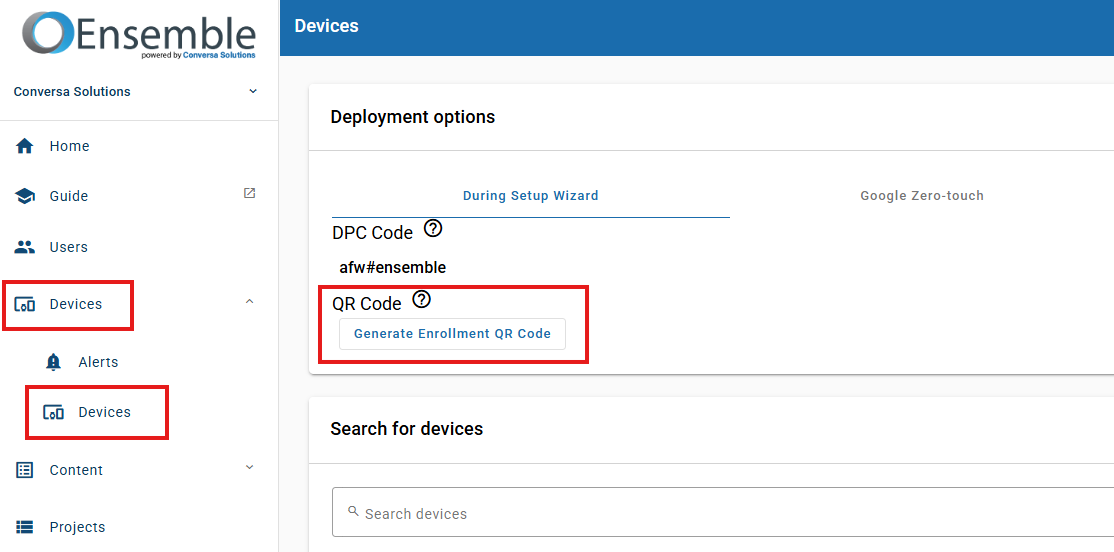
To use the QR code method, navigate to the company Devices page, choose the "During Setup Wizard" tab, and then click "Generate Enrollment QR Code" to begin.
Ensemble Version Selection (Required)
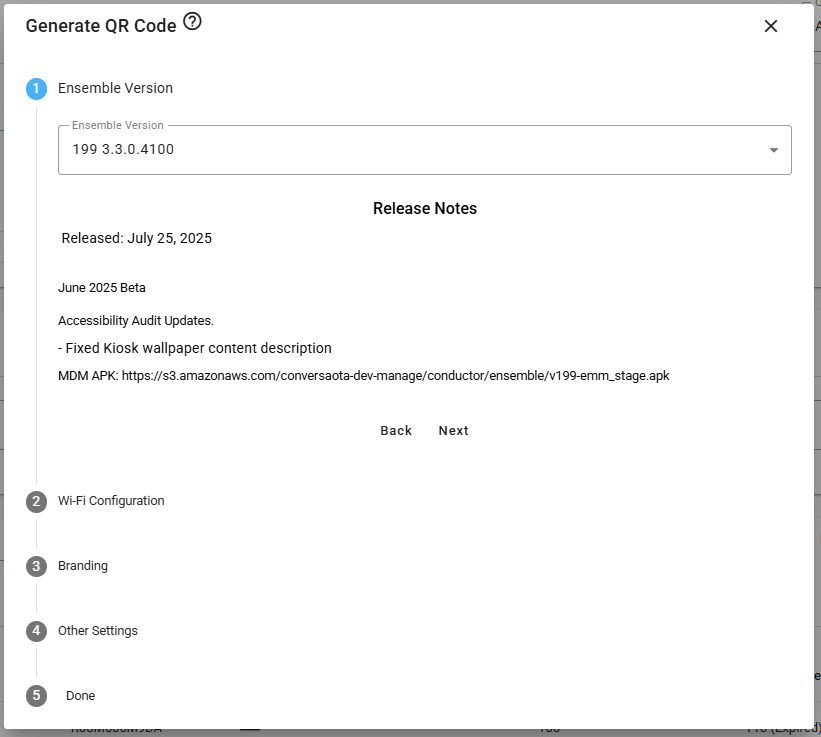
The first section you will see is where you select the Ensemble version you wish to install. By default, it will select the most recent version available. If you would like to use an older version, click the drop-down menu and choose the version you would like to use.
Wi-Fi Configuration (Optional)
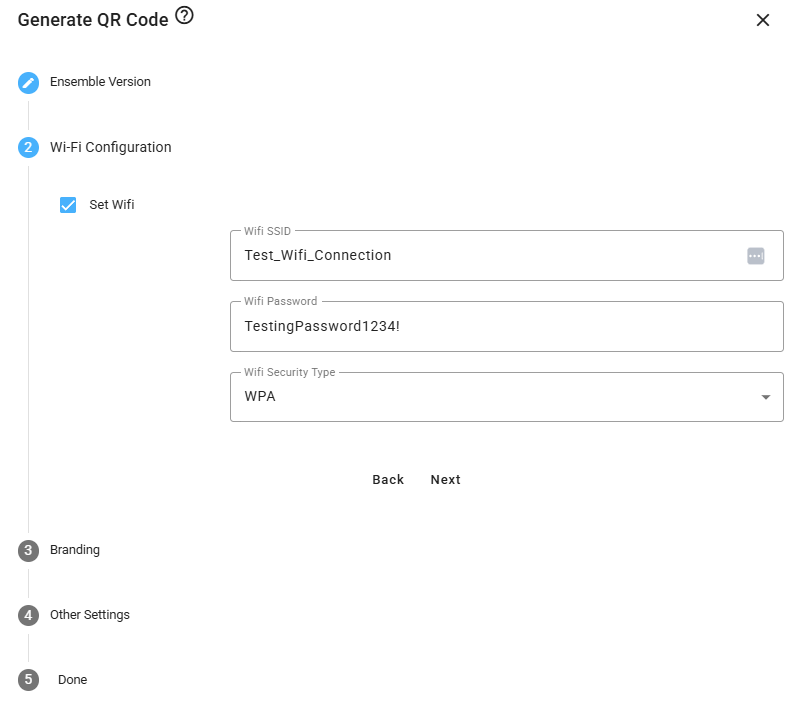
The next section allows you to set-up a Wi-Fi connection on the device. This connection will be used during the set-up wizard to install the Ensemble MDM application.
To set a Wi-Fi connection, first click the Set Wifi checkbox. The first input box is the Wifi SSID, this is the name of the network you would like to connect to. The next input box is the password to the WIFI SSID that was previously entered. The next drop-down box is for selecting the security type of your network.
Branding (Optional)
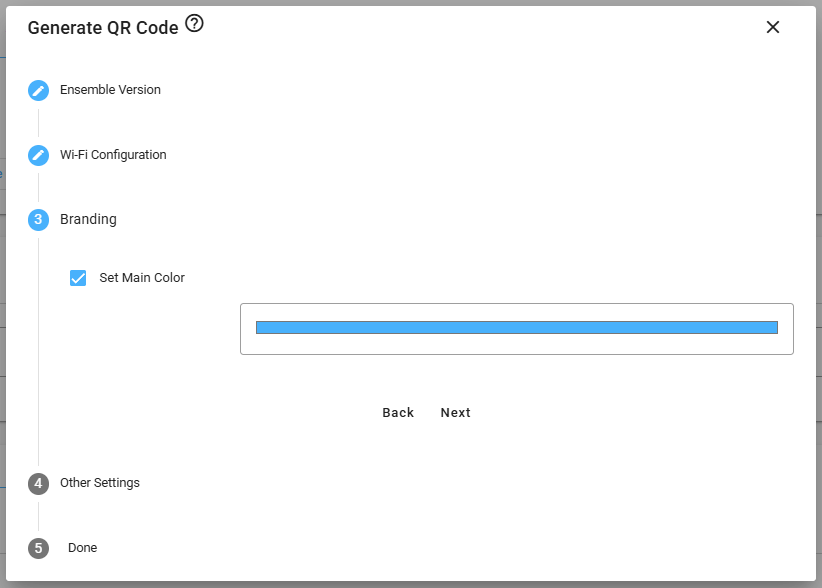
The branding page allows you to change the Ensemble application's color. Check the "Set Main Color" box, then click on the blue color box and use the slider to choose your color.
Other Settings (Optional)
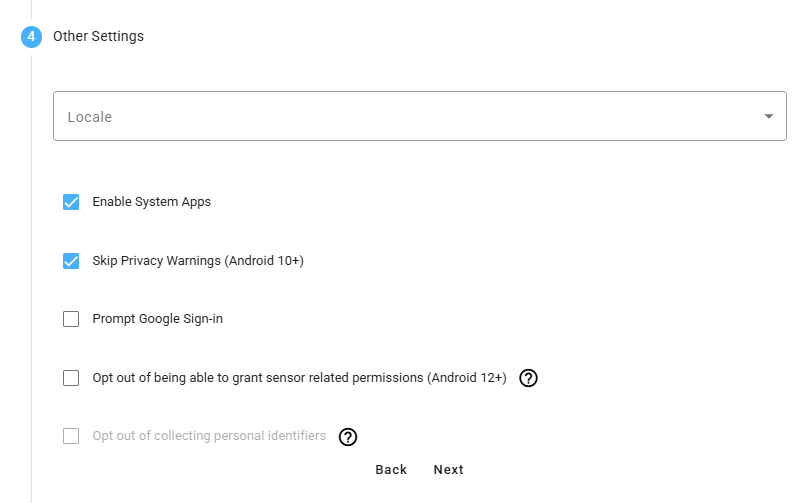
- Locale:
- Select the language
- Enable System Applications:
- Controls whether or not certain system applications are enabled, such as Samsung Gallery, Samsung Notes etc.
- Skip Privacy Warnings:
- If this is unchecked, you will see a "This device is not private" screen in set-up wizard during the installation of the Ensemble application. If checked, that screen will simply be skipped.
- Prompt Google Sign-in:
- When activating an MDM, the option to add a Google Account is skipped. This will force the user to sign-in to a Google Account
- Opt out of being able to grant sensor related permission:
- By checking this box, the Ensemble application can deny, but will not be allowed to grant permissions for location, camera, microphone, activity recognitions or body sensors on the device.
- Opt out of collecting personal identifier:
- In order to use this option, you must accept the protected health information terms and conditions under the HIPAA and HITECH Act. This option will opt the device out of collecting the following:
- Location Information
- Phone Number
- IP Addresses or MAC Addresses
- SIM ICCID
- In order to use this option, you must accept the protected health information terms and conditions under the HIPAA and HITECH Act. This option will opt the device out of collecting the following:
Generate QR Code
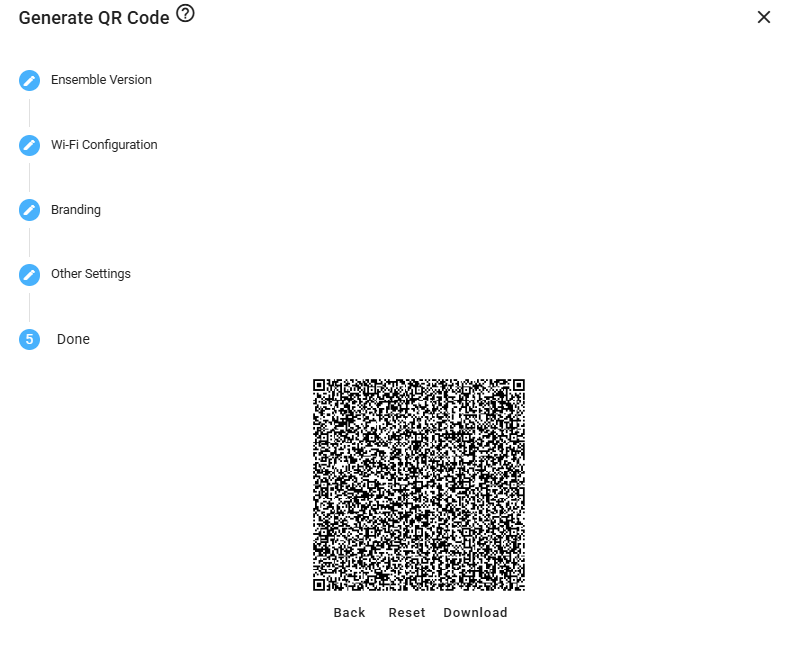
The final page is where the QR Code will generate automatically. This QR code contains all the settings that were selected in the previous steps. From here, you can scan the code with your device(s), reset it and start over, select Back to edit settings on your previous steps, or Download the QR code for future convenience.
To scan the QR code with your Android device, simply tap the first screen of the setup wizard 6+ times to bring up the QR code scanner.